

User Guide
Welcome to Muhoort. This guide explains how the calendar works, how to read auspicious-time signals, and how to talk to Muhoort for guidance.
Each section below covers a different part of the app. You can scroll through end-to-end or jump straight to a topic.

Reading the calendar
The Month view shows one colored bar on each day. The bar reflects the combined muhoort quality of that day across all the categories you have currently selected — not one bar per category.
The category labels at the top of the calendar tell you which categories are being combined. Tap them to change the selection (see Categories & personalization below for details).

Each bar is a horizontal mix of three colors. The length of each color shows the percentage of the day where the combined quality falls in that band:
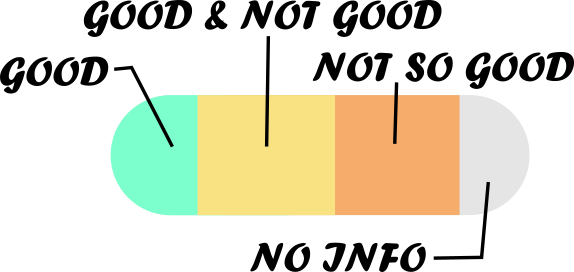
- Green — good times. Auspicious across the selected categories.
- Yellow — mixed. Some good and some unfavorable aspects during the same span.
- Light brown — not good times. Consider postponing if possible.
So a day mostly green is broadly favorable for the categories you have selected; a day mostly light brown is one to reschedule. Narrow the selection (e.g., just Travel) to see how a single category looks on its own.
Tap any day to switch to the Day view and see the hour-by-hour muhoort breakdown. The same color scale applies across every view.

Switching views
Muhoort has four ways to look at the same calendar:
- Month — overview of the next ~5 weeks at a glance.
- Week — seven-day strip with finer-grained color bands.
- Day — single day, hour-by-hour, with your events overlaid.
- List — your upcoming events in chronological order.
Tap the hamburger (≡) icon in the top bar to switch between views.
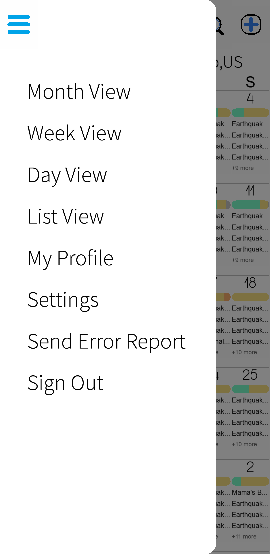
Inside any view, swipe left or right to move forward or backward in time.

Adding and managing events
Tap the + icon in any calendar view to create an event. You can set:
- A title and optional description.
- A category — this colors the bars on your calendar.
- Start and end times, or mark it as an all-day event.
- Recurrence (daily, weekly, monthly, custom).
- Reminders that fire as local notifications.
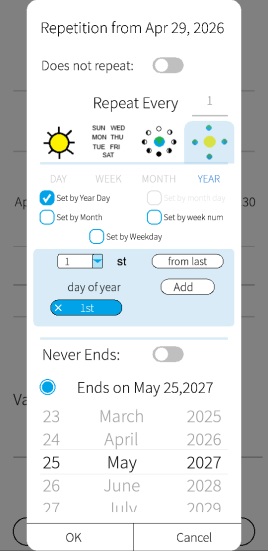
Tap an existing event to view, edit, or delete it. For recurring events you can choose to change just one occurrence or all future occurrences.

Connecting Google or Outlook
Muhoort can sync events from your existing calendars so you see everything in one place. From the My Profile screen, tap Add Calendar and authorize Google or Outlook.
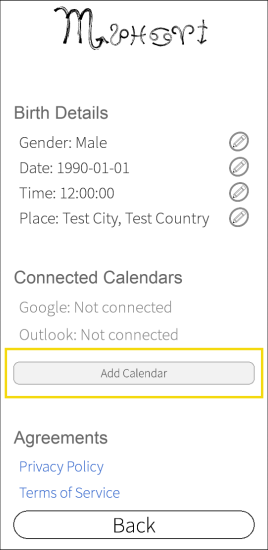
Events you add in Muhoort flow back to the connected calendar. Changes made elsewhere appear in Muhoort within a few minutes. You can pick which calendars under each provider to sync — for example only your personal calendar, not work.

Categories & personalization
Categories are how Muhoort tailors guidance to what matters in your life right now. Select Travel if you have a trip coming up, Health if you're scheduling a procedure, and so on. The color bars on your calendar update to reflect muhoort strength for the categories you selected.
You can change selections any time from the calendar's top bar.
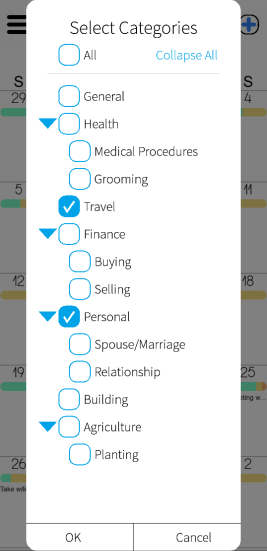
Your choices apply across all views and the daily notifications.

Daily notifications
Muhoort sends two notifications a day, both personalized to your selected categories:
- Morning — a brief summary of the most auspicious moments in your day ahead.
- Evening — a gentle prompt to reflect on how the day went. Your feedback helps Muhoort calibrate your notifications.
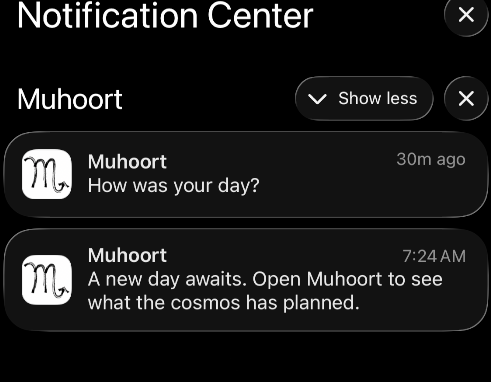
You can mute notifications from Settings if you'd rather check the calendar yourself.

Talking to Muhoort
Tap the feedback icon in any calendar view to start a conversation with Muhoort.

Muhoort can:
- Reflect with you when you need a companion.
- Suggest auspicious moments for travel, decisions, health, or other intentions in the days and weeks ahead.
- Look at events on your calendar when you ask about a specific date.
If you tap the feedback icon in the evening and haven't yet given today's feedback, a short reflection flow runs first; afterwards the conversation continues with that feedback as context. During the day it goes straight to chat.

Your data & privacy
Muhoort stores your birth details (used to compute muhoorts), the calendars you connect, your category selections, and the conversations you have with Muhoort. Nothing is sold or shared with third parties. Full details are in the Privacy Policy and the Terms of Service.

Video tutorials
Short walkthroughs are on the way.
- No videos available yet — check back soon.
